Warning: WP_Syntax::substituteToken(): Argument #1 ($match) must be passed by reference, value given in /home/www/jaran.de/goodbits/wp-content/plugins/wp-syntax/wp-syntax.php on line 380
Warning: WP_Syntax::substituteToken(): Argument #1 ($match) must be passed by reference, value given in /home/www/jaran.de/goodbits/wp-content/plugins/wp-syntax/wp-syntax.php on line 380
Having installed the Android SDK and getting to work the Hello-World-Sample, it’s time to write the first app that isn’t just written down from some tutorial website.
I chose a simple number guessing game, as it was the first piece of code I can remember to have written ever. It was part of the users manual of the Commodore 64 my brother bought back in the time when 8 bits ruled the world 🙂
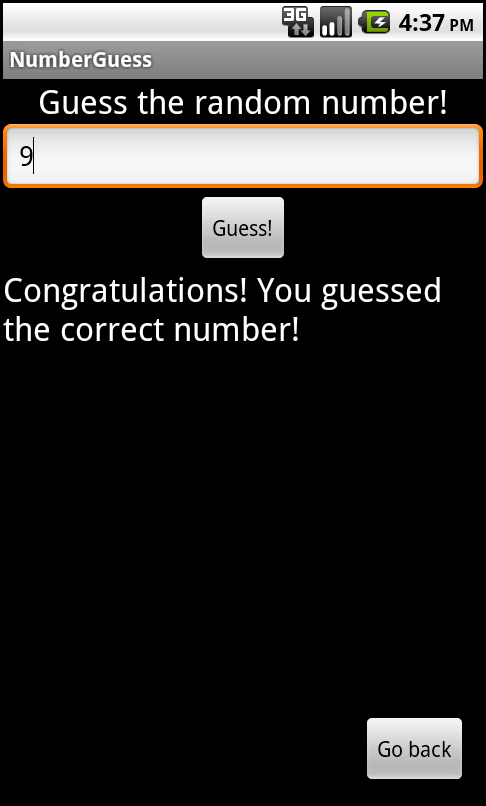
The reader of this mini tutorial should be familiar with Java and at least the “Hello, World” tutorial I refered to in an earlier post.
Before the user starts guessing we want him to enter an upper limit so that the random number to be guessed lies somewhere between 0 (excluded) and the upper limit (included). The main activity will show a simple form where the user can enter that limit:

Using the graphical editor of the Android Development Tools plugin we create the screen featured above which results (after giving appropriate id names and string resources) in the automatically generated file main.xml.
The EditText element with the id upperLimit will be used to let the user enter an upper limit for the number to guess. The button below (with the id goButton) starts the game.
Accordingly we’ve got to setup our main activity, which I called NumberGuessActivity. It’s onCreate method looks like this:
public void onCreate(Bundle savedInstanceState) { super.onCreate(savedInstanceState); setContentView(R.layout.main); final Button goButton = (Button) findViewById(R.id.goButton); goButton.setOnClickListener(new OnClickListener() { public void onClick(View v) { Intent startGuessingIntent = new Intent(v.getContext(), GuessingActivity.class); EditText upperLimitEditText = (EditText)NumberGuessActivity.this.findViewById(R.id.upperLimit); int upperLimit = Integer.parseInt(upperLimitEditText.getText().toString()); startGuessingIntent.putExtra("upperLimit", upperLimit); NumberGuessActivity.this.startActivity(startGuessingIntent); } }); } |
The setContentView loads the main view we designed. The next line gets a reference to the button which is used to add a listener which has its onClick method run whenever a user clicks the button. In it we create a new Intent object which gets passed the class of our second activity, the one which contains the actual gameplay. The first picture in this blog post shows its layout which again is put together using the graphical editor resulting in the guessing.xml which you can download to take a look at or paste into your project.
Before starting this second activity we first need to retrieve the upper limit the user entered and pass it to that activity.
This is done by getting the EditText object which is found by its id upperLimit. We read out the entered limit and pass it as an “extra” to the intent which is then being used to start our GuessingActivity:
public void onCreate(Bundle savedInstanceState) { super.onCreate(savedInstanceState); setContentView(R.layout.guessing); Bundle extras = this.getIntent().getExtras(); int upperLimit = extras.getInt("upperLimit"); final int randomNumber = (int)(Math.random() * upperLimit + 1); final Button guessButton = (Button) findViewById(R.id.guessButton); guessButton.setOnClickListener(new OnClickListener() { public void onClick(View v) { EditText guessedNumberEditText = (EditText)GuessingActivity.this.findViewById(R.id.guessedNumber); int guessedNumber = Integer.parseInt(guessedNumberEditText.getText().toString()); String message; if (guessedNumber == randomNumber) { message = "Congratulations! You guessed the correct number!"; } else if (guessedNumber < randomNumber) { message = "My number is bigger!"; } else { message = "My number is smaller!"; } TextView resultText = (TextView) GuessingActivity.this.findViewById(R.id.guessResult); resultText.setText(message); } }); final Button goBackButton = (Button) findViewById(R.id.goBackButton); goBackButton.setOnClickListener(new OnClickListener() { public void onClick(View v) { GuessingActivity.this.finish(); } }); } |
Again the onCreate-method is used. It sets the content view to our layout and then retrieves the upper limit from the intent that was used to start this activity.
Then the random number is created using the given upper limit.
Two buttons are being used. One is used by the user to take a guess at the random number. Again a listener is added and the EditText element containing the user’s guess is read out. After comparing it with the random number a TextView element is being updated to show an appropriate message.
Finally the goBackButton is used to finish the activity.
Before running the app our second activity has to be registered in the applications manifest file or it won’t be found. Just add it to the applications node using the manifest file editor.
What is learned?
By creating this simple application I learned the following things:
- Creating a main activity layout using a LinearLayout, RelativeLayout and assigning appropriate resource names to the elements
- Using editable text fields, that is reading them out
- Creating TextView elements and setting their text at run time
- Creating a second activity (and layout) and switching to it from another activity using Intents
- Passing data from one activity to the other using intents and Bundles
- Finishing an activity and returning to the one that called it
This tiny application was written to get some fast results. It’s probably not behaving correctly when its activities are being interrupted or even terminated by the Android OS and it uses a quick&dirty layout and is not really comfortable to use. But that was not (yet) the intention of writing it.


You should make a Jarwiki app. An app where people can type in all kinds of questions and it is immediatly sent to your mobile so you can answer. 😉
But I don’t really need an additional app for that, you already ask me everything via SMS 😉